BIM has always promised one thing: fewer surprises in the field. But let’s be honest, traditional BIM workflows still lean heavily on human effort. You run clash tests, you sift through hundreds (or thousands) of issues, you manually reroute systems, and you iterate on layouts until the team runs out of time or patience.
That’s exactly where AI in BIM is changing the game. Not because AI replaces coordination, but because it can automate the boring parts, speed up the repetitive parts, and help teams explore better options faster.
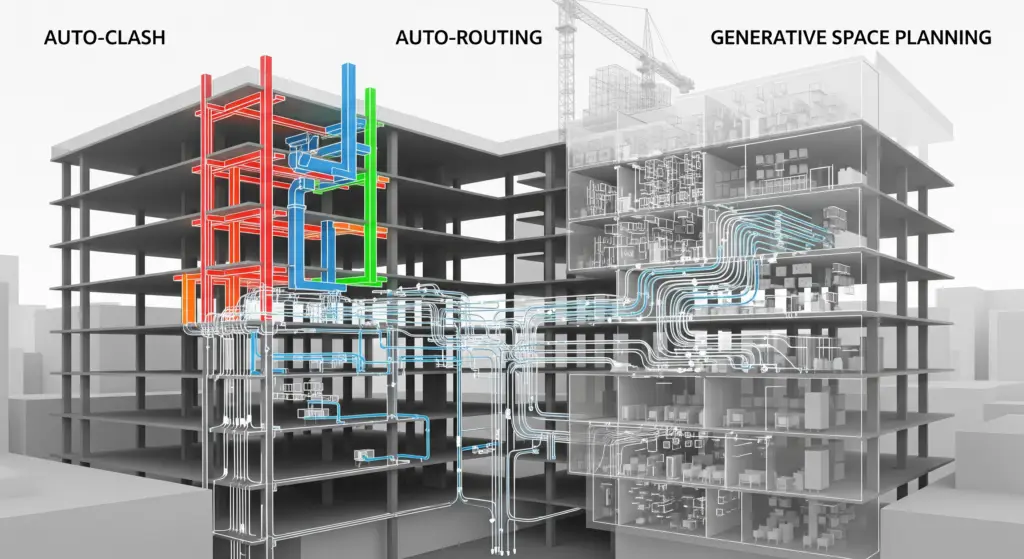
In this blog, we’ll break down three practical, jobsite-relevant shifts:
- Auto-Clash: smarter clash detection, grouping, and prioritization
- Auto-Routing: faster MEP routing with constraints (and fewer late-stage headaches)
- Generative Space Planning: algorithm-driven layout options based on goals and rules
And yes, we’ll talk about the tradeoffs—because “AI-powered” can go wrong fast if your models, families, and standards aren’t ready.
Why AI in BIM is showing up now
This change isn’t happening because the industry suddenly got trendy. It’s happening because project complexity keeps climbing especially in MEP-heavy buildings and the old approach doesn’t scale.
Even with strong coordination, many teams still drown in issue lists. Autodesk itself has pointed out a common coordination failure mode: without a solid method, teams end up with “thousands of meaningless clashes.”
AI helps by doing what computers do best:
- Pattern recognition (spot repeating issues)
- Optimization (find routes that satisfy constraints)
- Exploration (generate many options quickly)
- Prioritization (rank what matters most)
But the key is this: AI only becomes valuable when it’s anchored to real constructability rules and clean data.
1) Auto-Clash: from “find everything” to “find what matters.”
The baseline: traditional clash detection
Most teams still rely on tools like Navisworks Clash Detective to define clash tests and identify interferences between objects.
Revit also offers interference checking inside the authoring environment.
Those tools are proven. The problem is the workflow around them.
The real pain: clash overload
If you’ve coordinated even a mid-sized healthcare or lab project, you’ve seen it:
- 8,000 clashes logged
- 6,500 are duplicates or irrelevant
- 900 are “soft” clashes that need clearance rules
- 600 are real coordination decisions
- 0 people have time to review them properly
So the industry’s bottleneck is no longer “finding clashes.” It’s triaging and resolving them intelligently.
What Auto-Clash actually means
Auto-Clash isn’t magic. Think of it as automation layered on top of clash detection, often using a mix of:
- Rules (hard vs soft vs workflow conflicts)
- ML clustering (group similar clashes)
- Heuristics (prioritize clashes in tight zones or critical path areas)
- Context awareness (is this a real conflict or an intentional overlap?)
Navisworks is built to detect and manage clashes, but smarter workflows focus on better filtering and coordination discipline rather than brute-force detection.
Where Auto-Clash helps most (real-world)
Auto-Clash shines when you standardize your approach:
- Clash grouping by system and zone (instead of one giant test)
- Tolerance rules by trade (soft clash thresholds)
- Priority scoring (life safety > main trunks > branch runs)
- Repeat clash suppression (same issue logged 50 times = one actionable item)
Auto-Clash can absolutely make teams faster—but only if your models are consistent. If your families are sloppy or your naming is chaos, AI will still output “results,” but they’ll be noisy.
Tradeoff: speed vs trust
Bottom line: AI won’t fix messy BIM. It will amplify it.
2) Auto-Routing: the fastest way to kill rework in MEP coordination
Routing is where coordination lives or dies. Every mechanical room, every ceiling plenum, every corridor choke point—routing decisions are schedule decisions.
What “Auto-Routing” looks like today
There are already routing accelerators inside standard toolsets.
For example, Revit supports Multi-Point Routing for MEP fabrication parts, helping users quickly draw runs by clicking points and letting the tool insert parts automatically. And the Autodesk ecosystem includes add-ins that do “automatic routing” for specific use cases—like routing electrical circuits along cable tray routes and checking containment sizing.
So when we talk about Auto-Routing in AI terms, the practical evolution is:
- From “draw it faster”
- To “propose a route that works”
What AI adds to routing (the useful part)
True AI-assisted routing goes beyond geometry. It can factor constraints like:
- Required clearances and access zones
- Slope requirements (drainage, condensate)
- Preferred pathway logic (corridors, risers, shafts)
- Trade priorities (who owns the best elevation?)
- Fabrication rules (standard lengths, bend constraints)
- Clash avoidance before you run coordination
That’s where routing becomes “decision automation,” not just drafting automation.
Where Auto-Routing delivers immediate ROI
Auto-Routing is most valuable when:
- You’re producing fabrication-ready models
- You’re coordinating dense MEP zones
- You need consistent routing across multiple floors
- You want fewer field RFIs and fewer late reroutes
This aligns with how BIM models are used for coordination and clash-free routing—especially when teams deliver data-rich models with defined LOD requirements.
Tradeoff: automation vs constructability judgment
Auto-routing can generate a path that “fits,” but still fails constructability if it ignores:
- hanger space
- access panels
- valve clearance
- maintenance pull space
- installer sequencing
So the best approach is hybrid:
Let automation propose → let humans approve → let rules enforce.
3) Generative Space Planning: stop guessing, start exploring
Generative design in BIM is the most misunderstood piece of “AI in BIM,” mainly because people expect it to output a finished floor plan.
That’s not the point.
Generative design is about defining goals and constraints, then using computation to explore many options and surface the strongest candidates.
What generative space planning actually does
Instead of hand-testing 3 layouts, you can generate 300—and then filter by what matters:
- adjacency rules (who needs to sit near whom)
- travel distance (reduce walking time)
- daylight access
- egress logic
- density targets
- program requirements
Autodesk has shown how generative design in Revit can be used for workspace layout studies, where you generate and compare outcomes based on measurable criteria.
Where it fits in real projects
Generative space planning is most useful in early stages:
- office layouts
- healthcare departments (adjacency and flow)
- labs (program rules + safety constraints)
- education buildings
- retail planning
- multi-family unit mix planning (with constraints)
This matters because early layout decisions cascade into:
- structural grids
- shaft locations
- core planning
- MEP distribution efficiency
Tradeoff: better options vs stakeholder overload
Generative workflows can flood a team with “too many choices.” If you don’t define success metrics clearly, you’ll waste time debating outputs.
The fix is simple: agree on 3–5 decision metrics upfront (cost, circulation, daylight, flexibility, etc.). Then the computer does the exploration, and the team does the selection.
What you need before you “turn on AI” in BIM
If you want Auto-Clash, Auto-Routing, or Generative Planning to work reliably, focus on the foundation first.
1) Clean inputs (or expect garbage outputs)
- consistent model element naming
- disciplined worksets and zones
- correct categories (no duct accessories modeled as generic models)
- standardized families with accurate connectors and metadata
2) Clear LOD and responsibility rules
If one trade models at LOD 200 and another models at LOD 400, “automation” becomes a blame machine. The model needs consistent detail expectations—many BIM teams deliver models across LOD 200 to LOD 500 depending on project needs.
3) A real coordination process (not just software)
Software doesn’t coordinate projects—people do. Strong clash coordination starts with an organized federated model and ongoing checks at key milestones.
4) A common data environment
When teams collaborate through structured workflows and cloud platforms, automated issue workflows become far more practical.
A practical “start small” roadmap
If you’re trying to adopt AI in BIM without disrupting delivery, this progression works well:
- Phase 1: Smarter clash triage
- standard clash tests
- rule-based filtering
- grouping and priority scoring
- Phase 2: Semi-automated routing
- automate repetitive routing patterns (corridors, risers)
- enforce clearance and slope rules
- validate with clash checks
- Phase 3: Generative planning pilots
- pick one space type (office layout, patient room modules)
- define measurable success metrics
- generate options + review with stakeholders
Why this matters for schedule, cost, and risk
AI in BIM isn’t just “cool tech.” It changes project outcomes:
- Fewer late reroutes → fewer delays
- Cleaner coordination → fewer RFIs and change orders
- More layout options early → fewer painful redesigns later
And that ties directly to why modern BIM teams emphasize clash coordination and constructability review—because fixing issues early protects time and budget.
FAQs: AI in BIM (Auto-Clash, Auto-Routing, Generative Planning)
1) Is Auto-Clash the same as clash detection?
Not really. Clash detection finds conflicts. Auto-Clash focuses on automating what happens next—grouping similar clashes, filtering noise, and prioritizing issues so teams resolve the right problems faster. Clash detection tools like Navisworks Clash Detective are the engine, while Auto-Clash is the intelligence layered on top. (Autodesk Help)
2) Can AI actually resolve clashes automatically?
In limited cases, yes—especially when the fixes are rule-driven (like shifting a branch duct within a defined corridor zone). But most “real” clashes require design intent and trade coordination. The realistic win is decision support, not full automation.
3) How does Auto-Routing work in Revit today?
Revit includes routing accelerators, like Multi-Point Routing for fabrication parts, which helps users model runs faster.
Beyond that, specialized add-ins can route certain systems automatically (for example, routing circuits along cable tray routes).
AI-enhanced routing builds on these ideas by applying constraints and learning preferred pathways.
4) What’s the difference between generative design and “AI making a floor plan”?
Generative design doesn’t “design for you.” You define objectives and constraints, and it explores many valid options so you can choose the best. Autodesk describes it as using computation to explore a wide design space based on goals and constraints.
5) What’s the biggest risk when adopting AI in BIM?
Bad data. If your models are inconsistent, automation will scale the inconsistency. Start by tightening BIM standards, families, LOD expectations, and coordination workflows first.
Conclusion
AI in BIM is already useful—but it’s not a shortcut around coordination discipline.
If you want Auto-Clash, Auto-Routing, and Generative Space Planning to pay off, treat AI like a power tool:
- It makes a good craftsperson faster
- It makes a sloppy workflow louder
- It rewards teams with standards, structure, and clear decision rules
If you build the foundation, AI can help you deliver cleaner coordination, faster routing decisions, and better early-stage layouts—without burning your team out on repetitive model work.